Share results with a client
A client portal is a link to a read-only report of one site, with your agency's name, logo and color. The client needs no account. Portals are part of Agency.
1. Open Client portals
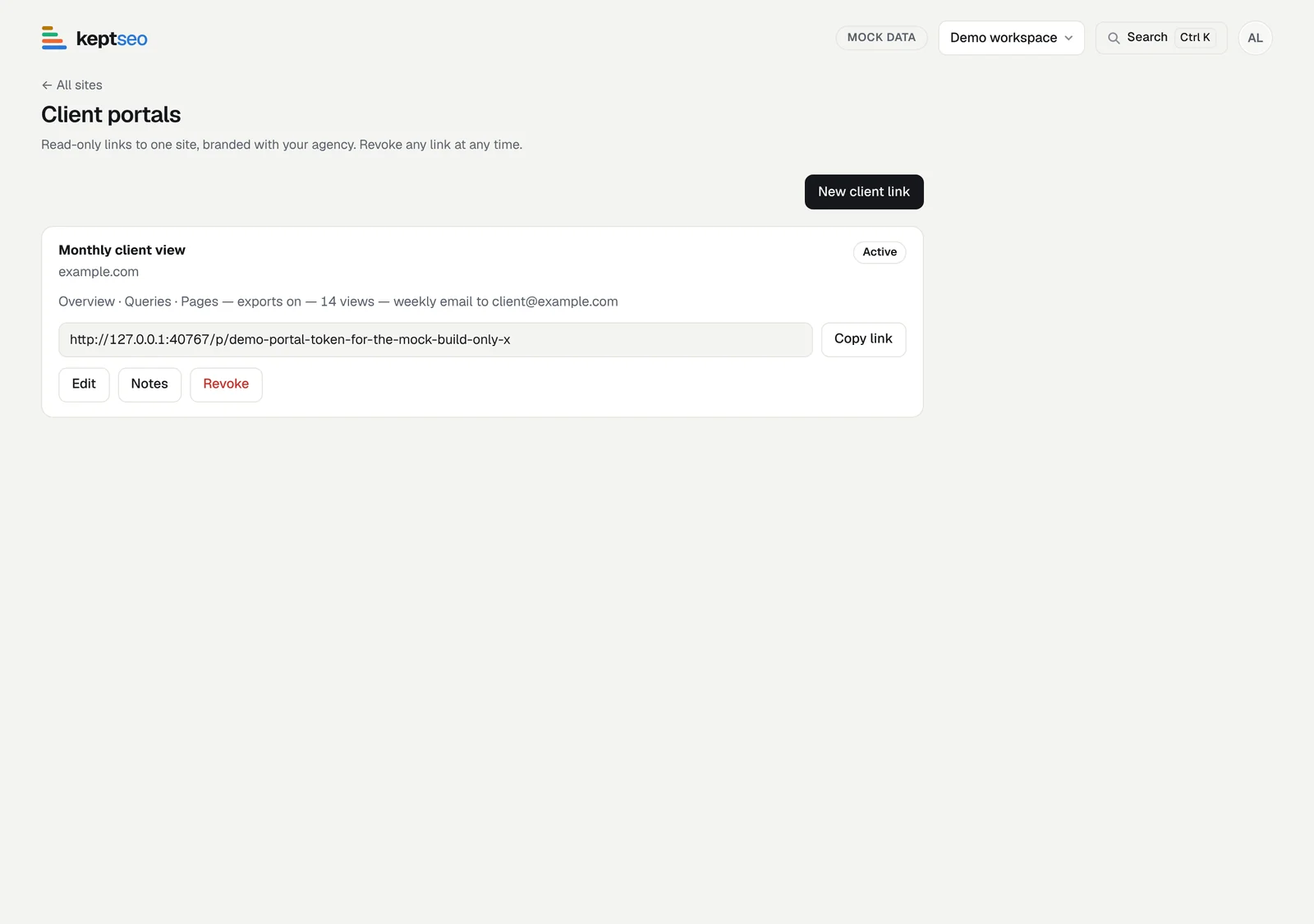
Open the account menu (the round button at the top right) and choose Client portals.
2. Create a link
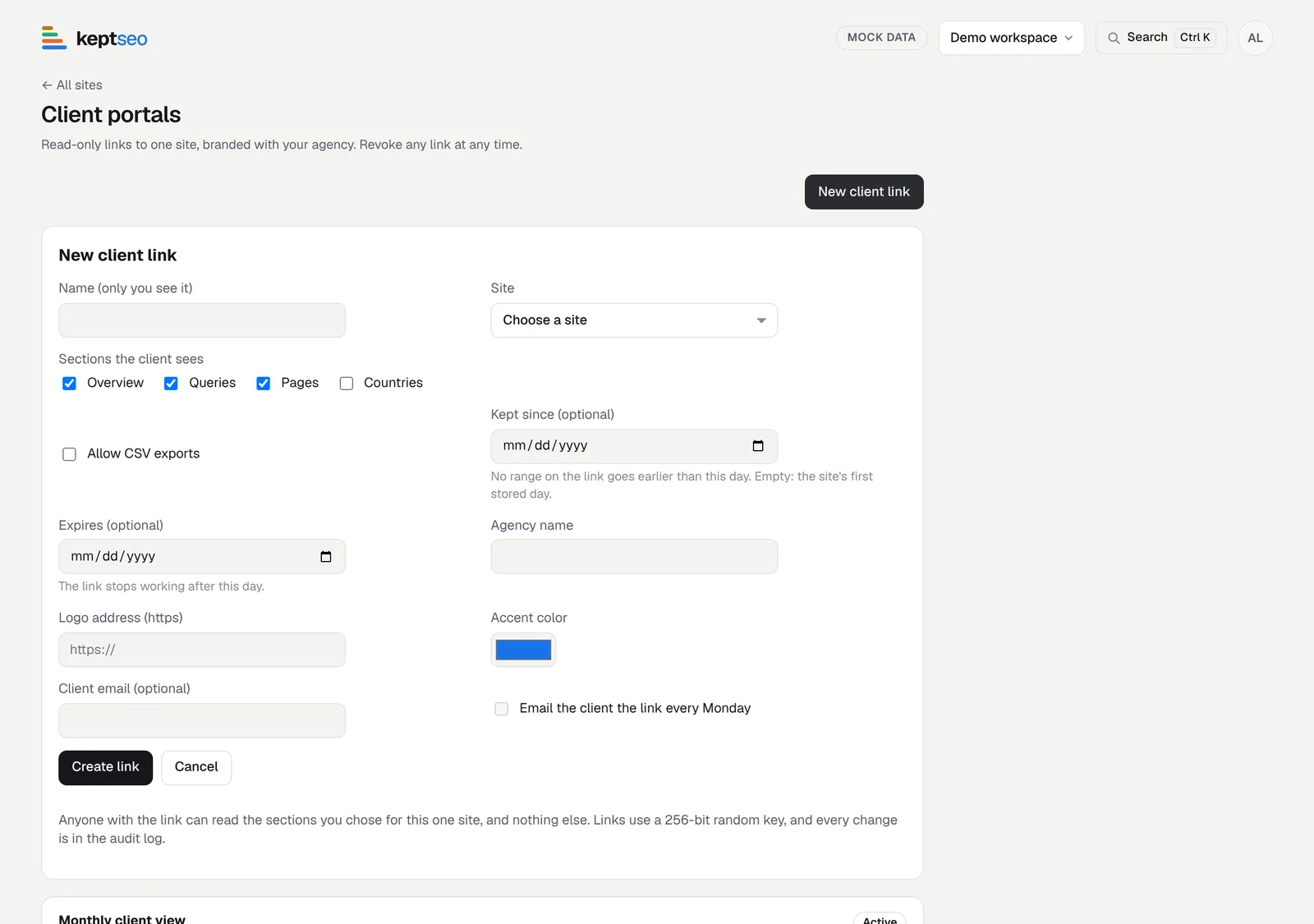
Choose New client link, the site and the sections: Overview, Queries, Pages, Countries. Optionally allow CSV exports, set a Kept since day and an expiry date, and add your branding and the client's email for a Monday email.
3. Choose what Changes & tests shows
A Changes & tests section shows your annotations to the client, read-only. Set once per link: Finished tests only (default), + ongoing work or Everything; hide tests that did worse than control, tests too short to call, and Off-page notes; filter by category. To keep one note private, use Hide from clients on its detail page or edit form. Internal notes, control page lists, team names and edit buttons are never shown. Tasks can be added as a section; opportunities are never shown.
4. Send the link
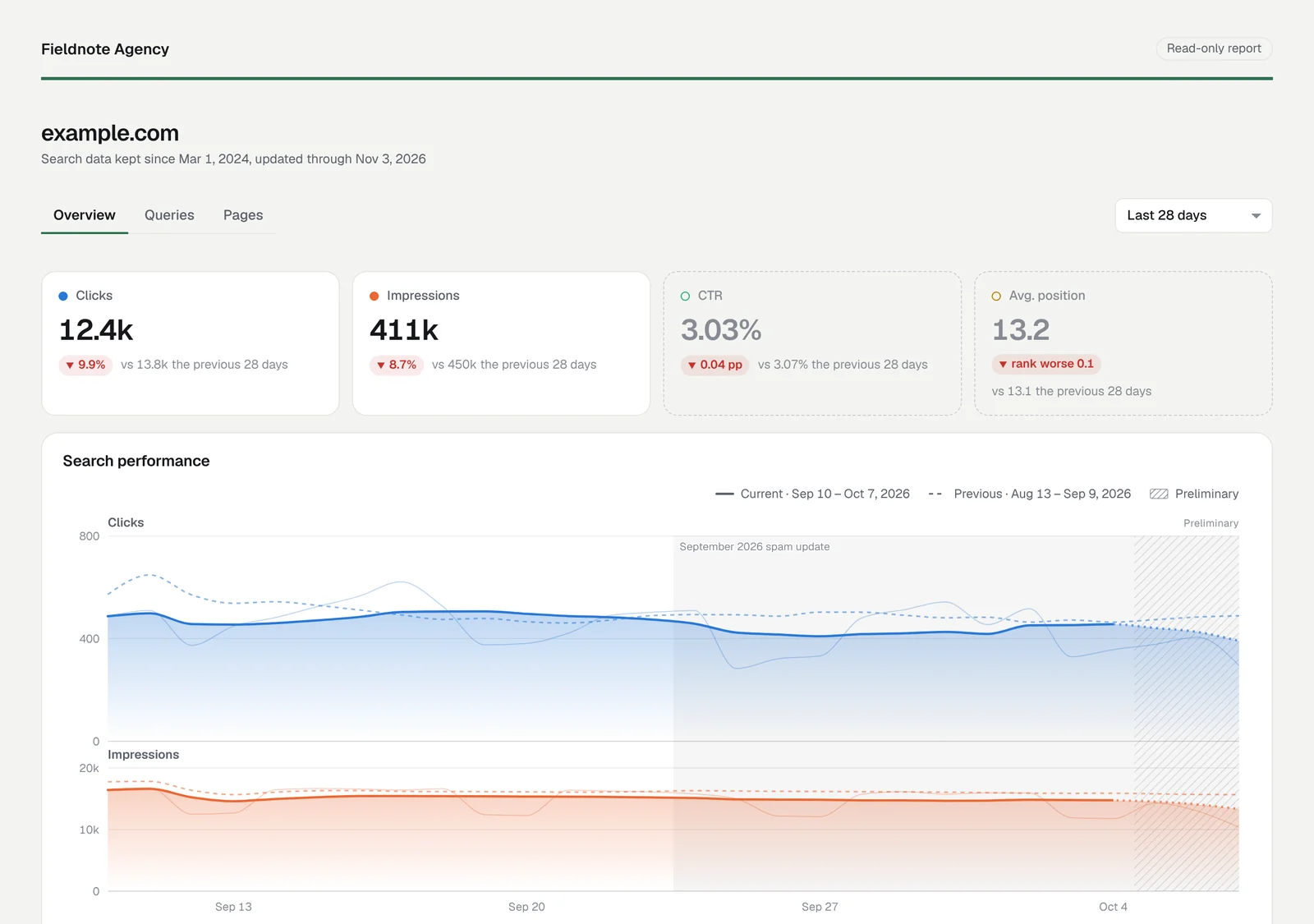
Copy the link and send it. This is what the client sees.
5. Protect the link
New links expire after 90 days by default. Turn on email verification to list the emails allowed in: the client enters a 6-digit code, and their device is remembered for 30 days. Verified links can be set to never expire.
6. Revoke when you're done
Select Revoke to stop a link at once. It can't be turned back on.
Start free, or see features and pricing.